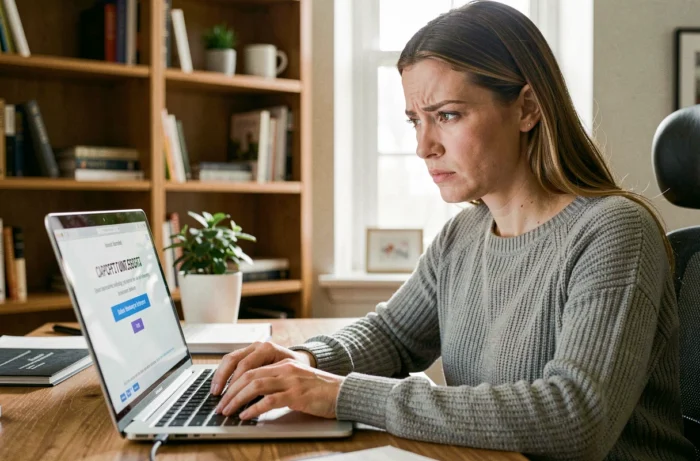
Captcha systems do more than check a visual response. Some assess IP address reputation, cookie presence, JavaScript execution and browsing behavior in the background. As a result, a captcha can be marked invalid even when the answer entered is correct. Since June 28, 2025, the European Accessibility Act has applied to certain digital services, making the issue of blocking captchas even more pressing for website operators.
The seven tips below cover the most common causes, from the simplest to the most technical, including situations where legitimate users remain blocked despite repeated attempts.
1. Check your Internet connection
A captcha needs to communicate with a remote server to validate your response. If your connection is unstable or too slow, the request times out before it can be completed, and the system returns an error. In that case, the problem is neither your answer nor your browser.
A quick test is to load another website or run a speed test. If other pages are slow to load, your connection is likely the cause. Restarting your router or switching from Wi-Fi to mobile data is often enough to restore communication with the validation server.
Some DNS filters or network firewalls also block domains used by captchas (for example, Google reCAPTCHA servers). If the issue occurs on just one network, while the same site works on another, this points to this type of blockage rather than to the answer you entered. Trying the same page over a mobile network can confirm this, without making any lasting changes to your settings.
The first step to fix an invalid captcha is therefore to check that your connection is stable and that nothing is filtering requests to the validation servers.
2. Refresh the page or clear your cache
Captcha tokens have a limited lifespan. If you spend a long time on a page before submitting the form, the token expires and validation fails. A simple refresh (F5 or Ctrl+R) generates a new token and a new challenge.
If refreshing doesn’t help, your browser cache may contain outdated files that conflict with the current version of the captcha. Clearing the cache and cookies for the site in question forces the browser to load up-to-date resources.

3. Disable browser extensions
Ad blockers, anti-tracking extensions and some script managers can prevent the resources needed by a captcha from loading. A blocker that filters requests to third-party domains may remove the validation script without displaying a warning.
The most reliable approach is to open a private browsing window, which disables most extensions by default. If the captcha works in this window, an extension is causing the problem. You can then re-enable them one at a time to identify the one that’s blocking it.
Browser extensions with built-in VPNs deserve particular attention. They change your visible IP address, which can trigger a high-risk assessment from the captcha system, even if you answer the challenge correctly.
4. Try another browser
Each browser handles JavaScript, cookies and security policies slightly differently. A captcha that consistently fails in one browser may work without any issues in another. Comparing how it behaves in Chrome, Firefox or Edge can quickly help identify a compatibility issue.
Outdated browsers are a common problem: they may not support some of the JavaScript APIs used by newer captchas. Checking that your browser is up to date can rule out this cause in seconds.
5. Check your security settings
Some browser or operating system security settings can interfere with captchas. Check the following:
- JavaScript must be enabled, as almost all modern captchas rely on it to work
- Third-party cookies must be allowed for the captcha domain (blocking them prevents tokens from being exchanged)
- Your system clock must be synchronized, as a significant time difference can invalidate the SSL certificates used by validation servers
Some browsers’ enhanced protection features (such as Firefox’s Strict mode) deliberately limit third-party scripts. Temporarily lowering the protection level for the site in question may resolve the issue, as long as you restore it afterward.
6. Contact the service’s support team
If none of the browser-side fixes work, the problem may lie with the website itself. A misconfigured captcha, an expired certificate or an outage affecting the validation service can all cause errors that users cannot fix on their own.
This step is especially important for people who use assistive tools. The W3C recommends that websites provide alternative options for different sensory disabilities when a captcha is necessary. If no alternative is available and the visual challenge remains impossible to complete, reporting the issue to support is the most constructive course of action.
With the European Accessibility Act now in force, a blocking captcha may warrant investigation by the website operator, rather than simply another attempt by the user. E-commerce and banking services are particularly affected by these requirements.
7. Wait and try again later
Captcha systems sometimes impose temporary limits after several consecutive failures. The more times you try to solve the challenge in a loop, the higher the risk score associated with your session may become. Waiting about ten minutes can reset this counter.
So-called “invisible” captchas are a good example of this mechanism. They automatically assess behavior without displaying a puzzle, but may block you or present an additional challenge if your score remains too low. Trying again after a break, in a fresh session, often works better than making repeated attempts.
Temporary outages affecting the validation service (such as Google reCAPTCHA or Cloudflare Turnstile) can also cause widespread failures. Checking these services’ status pages can help you determine whether the problem is widespread before changing anything on your own device.
An invalid captcha rarely has just one cause. A filtered network, active extensions and a misconfigured browser can combine to make failure more likely. Working through these seven tips in order, from checking your network connection to simply waiting, covers the vast majority of issues users encounter, including those who rely on assistive tools to browse the web.